
ShareCARD® Guide · Contracts
Create a contract template
Save a contract once and reuse it across as many agreements.
Overview
A contract template is a PDF contract stored in your Template Library, labeled so your team can find it. Once saved, it can be attached to any contract you send for signing — you do not upload the document again each time.
You need Admin access to your organization dashboard, and the contract saved as a PDF.
Adding a template
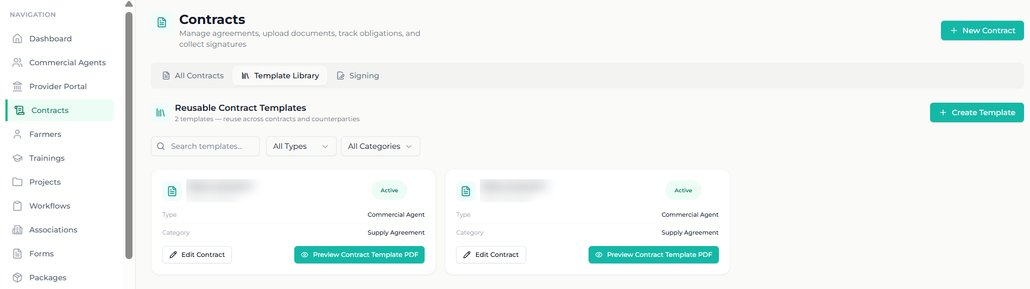
- From the Main Menu, tap Contracts
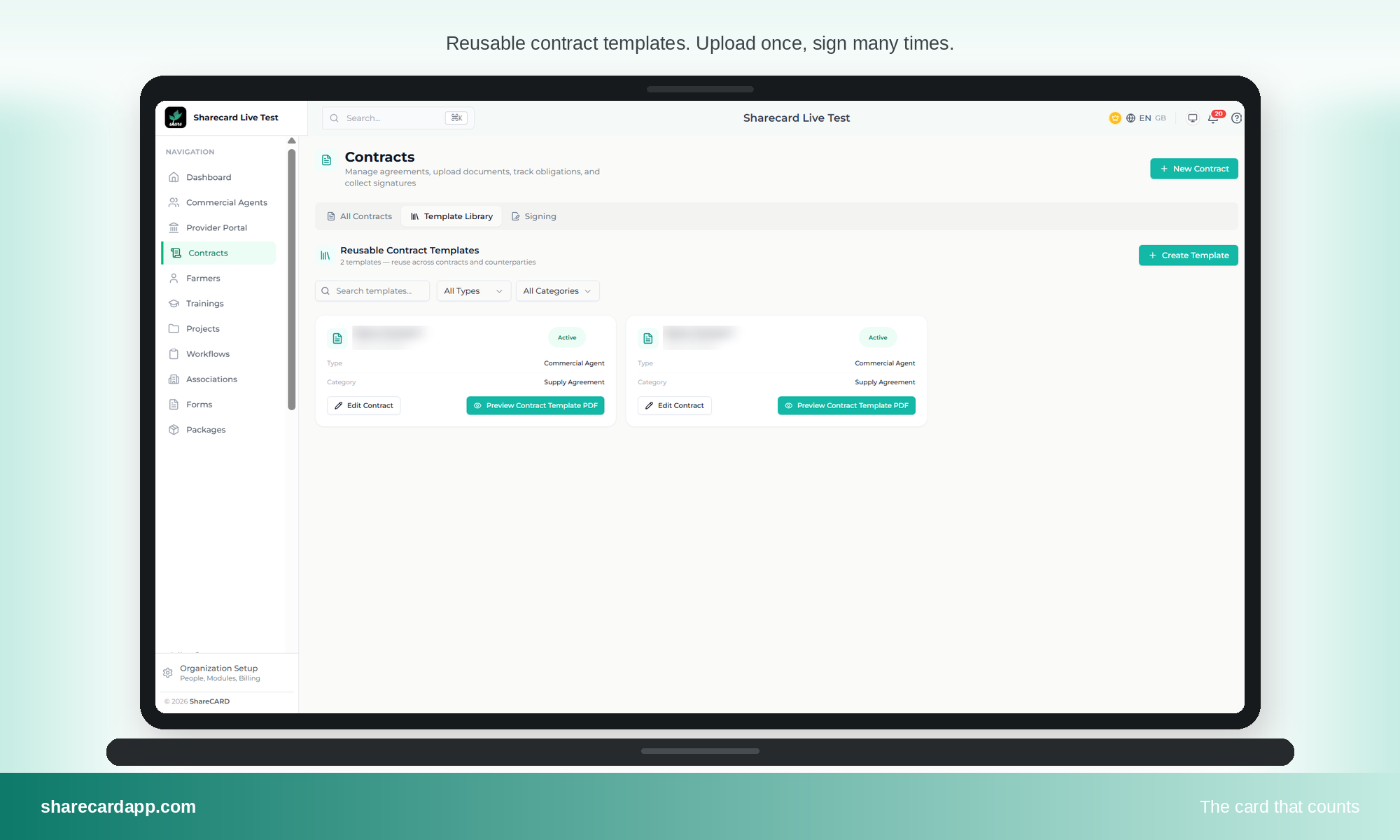
- Open the Template Library tab
- Tap Create Template
Fill in the template details:
- Type — who the contract is with, for example Commercial Agent
- Name — how the template appears in your library, for example Farmer Supply Agreement 2026
- Description — what this template is for
- Category — for example Supply Agreement
- Active — leave this on so the template can be used
- Contract Document (PDF) — upload the contract
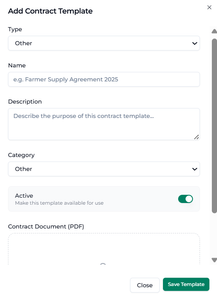
- Tap Save Template
Result: the template appears as a card in your Template Library, marked Active and ready to use.
Note: Type and Category are how your team finds templates later. Setting them properly now saves searching once the library grows.
Finding and previewing templates
The Template Library lists every template your organization has saved, with its type, category and status on the card.
To narrow the list, use Search templates, or filter by All Types and All Categories.
To check a document before you use it, tap Preview Contract Template PDF on the template card. The contract opens so you can confirm you have the right version — no downloading required.
You can also preview a template from within a workflow, at the point where you attach it to a contract.
Editing a template
Tap Edit Contract on the template card to change its details. Switching Active off retires a template without deleting it — useful when a contract version is superseded but you want the record kept.
Key notes & behavior
- Templates are reusable across contracts and counter parties
- Contracts must be uploaded as PDF
- Only Active templates can be attached to a contract
- Templates can be previewed in the library and from inside a workflow
Leave a Reply